
Magically Remove Image Backgrounds
Fully automatically, then go far beyond the AI — for Free
Fully automatically, then go far beyond the AI — for Free
Trained on millions and millions of real world images, not artificial lab data, the Clipping Magic Auto-Clip AI background remover handles so much more than just a few cherry-picked foreground categories.
And the learning hasn't stopped. As the AI background editor is exposed to more and more photos, its ability to handle yours continues to improve.
The only background removal editor in the world that seamlessly combines fully automatic AI with smart keep, remove, hair tools, and a scalpel for precision cut outs.
This gives you complete creative control. Great for touchups or if you're looking for something different. And crucially it lets you quickly succeed on 100% of images.
"Discovered Clipping Magic tonight and I'm blown away by how useful it is. It has saved me SO much time already!"
- Jean H
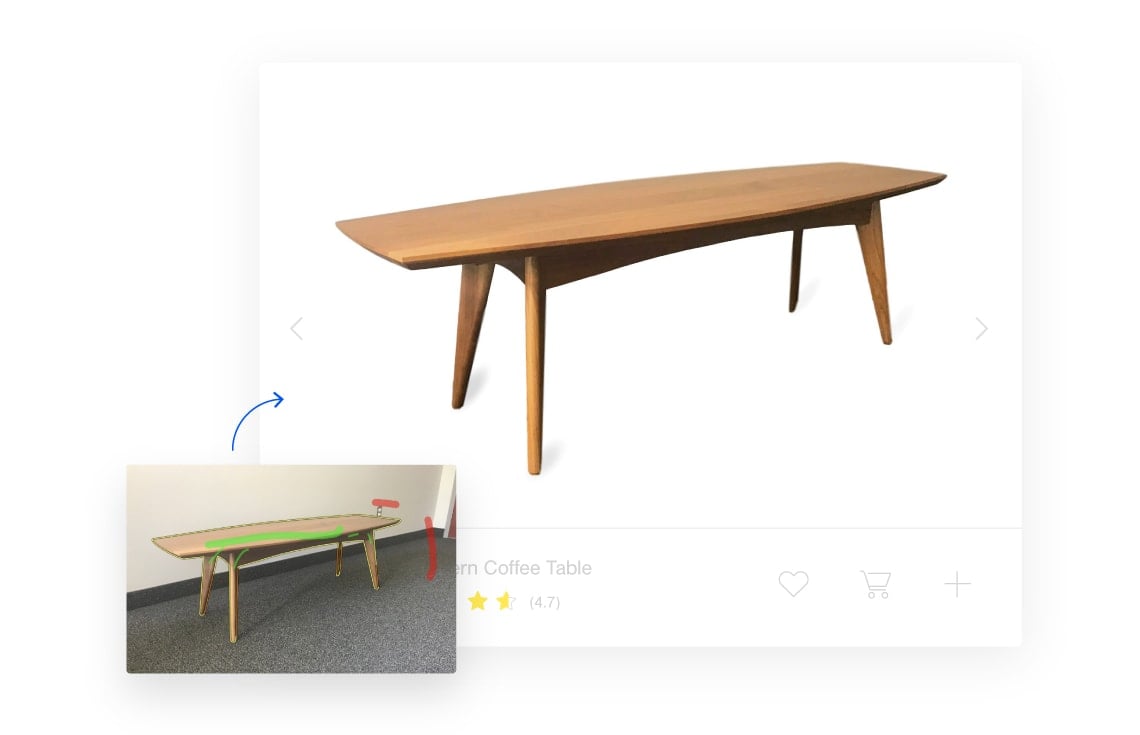
Is your ecommerce photo crooked or washed out? Misaligned in the frame? Has a gray-ish instead of white background? No problem! Swap the background color and liven up the image, then straighten and crop for a perfectly framed result.
Image Touch Up Tutorials »Auto-clip large catalogs of product photos. Configure your default settings for effortless color correction and consistent cropping on every image. The result will be uniform, professional shots in every edit.
Learn How to Configure Defaults » Bulk Clipping »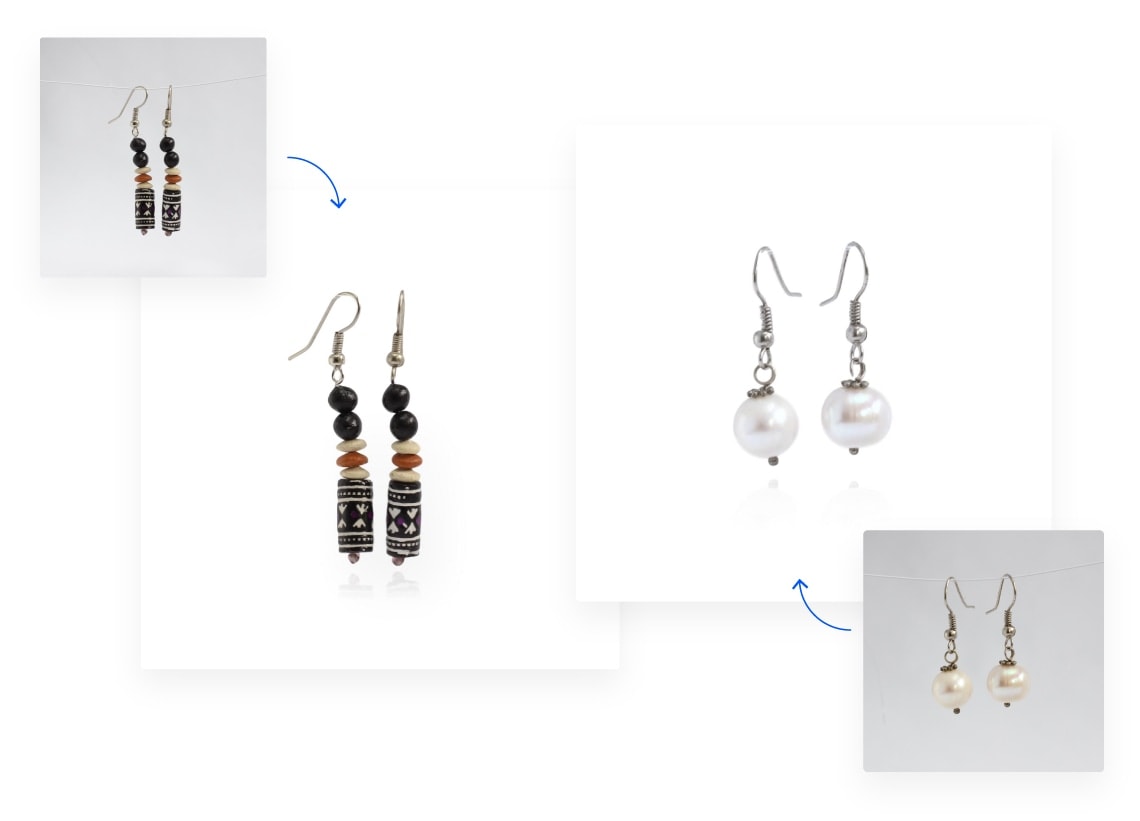
"This is just what I was wishing for today. Yesterday actually. It's a great tool."
- S. Langham
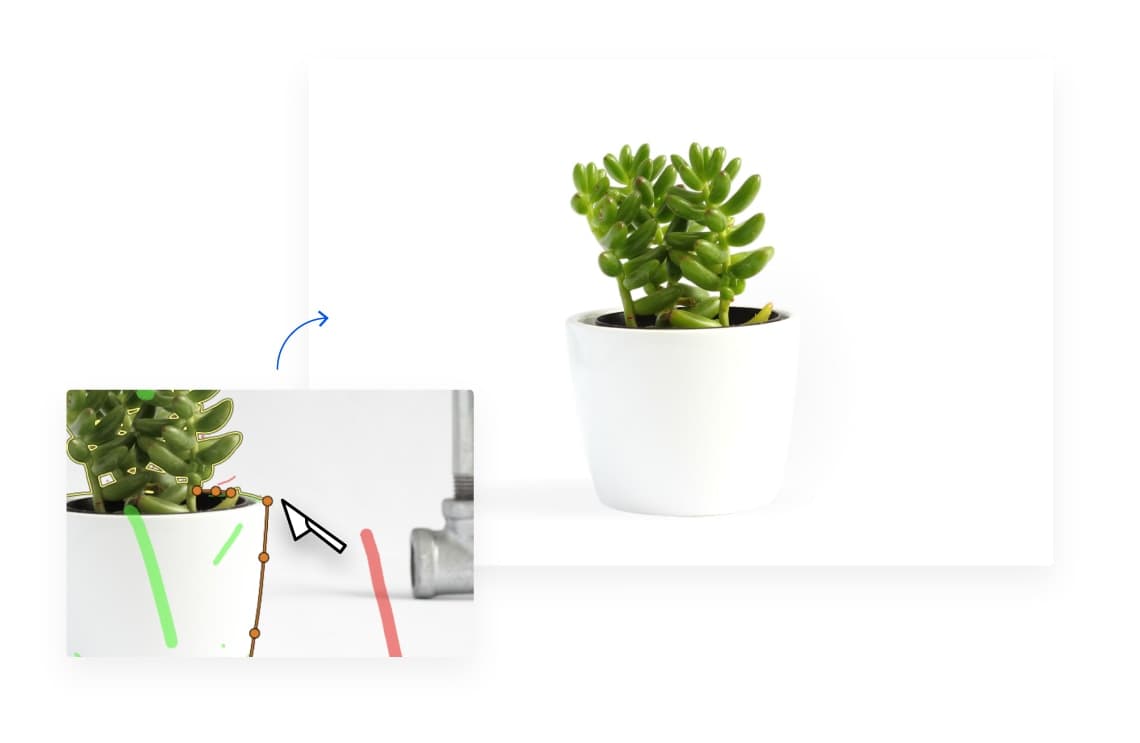
The Scalpel Tool allows you to get the clip just right in low-contrast areas of the image.
Learn the Scalpel Tool »Clipping Magic can automatically separate out hair from clean and distinct backgrounds. Gradients and some noise typically work, as long as the colors involved are sufficiently different.
Learn the Hair Clipping Tool »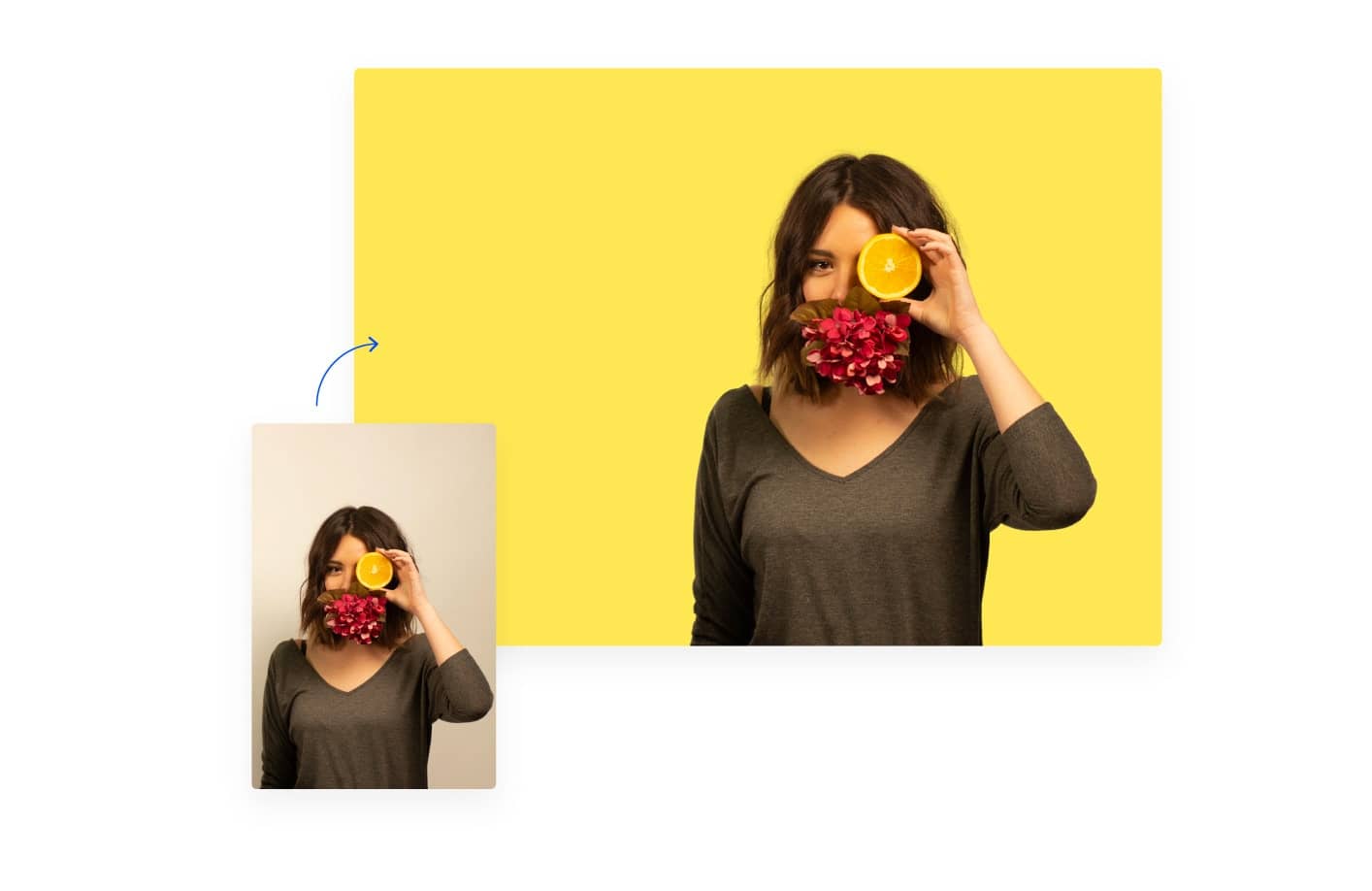
Go far beyond clipping paths, alpha masks, and the magic wand with our custom-built background eraser. Get better results with less time and effort.
Erase the background from your images right when you need it without having to wait. Get an unmatched result consistency that you have direct control over.
"WOW! You have built a much needed incredible tool."
- J. Fry, Ambitious Pixels
Increase conversion rates with stunning product photos that conform to eBay and Amazon requirements at a fraction of the hassle and the cost.
Quickly make your picture backgrounds transparent and create great marketing material and presentations with punch!
Tired of creating clipping paths in Photoshop? Be more productive with Clipping Magic!
Thousands of people all over the globe use Clipping Magic every day for everything from team photos to scrapbooking. Try it out today!
Auto-Clip AI: Instantly get a fully automatic result. Then touch it up or go creative with all the tools available in the app!
Background/Foreground Markers: Use red and green marks to quickly clear the background with our proprietary best-in-class algorithm.
Scalpel: Use the scalpel for critical precision cuts, enabling fast operation with great results on any image.
Snappy App: Tired of waiting to see the effects of your edits? So were we, so we made sure the app is always quick to update.
Powerful Algorithm makes the most of your input, minimizing the amount of work you need to put in to get a transparent or white background.
Smart Edges: Fully-configurable Smart Smoothing, Local Feathering, Edge Guard, Halo Scrubber, and Corner Guard give you complete control over the edges in your results.
Graphics Mode: Remove the backgrounds from logos and other computer graphics while preserving even pixel-level foreground detail.
Dedicated Hair Tool: Separate out hair from clean backgrounds. Gradients and some noise typically work, as long as the colors involved are distinct.
Smart Auto Crop: Clipping Magic can automatically fit the crop to your result with adjustable margins, align the result, and optimize for shadows.
Rotate/Straighten: Make sure your photos are correctly aligned. Rotate in steps of 90 degrees, or fine-tune the rotation angle to get the result just right.
Resize your results with ease. Lock in an aspect ratio or a specific target pixel size. For small input images you can optionally enlarge the result.
Background Color: Make the background transparent, pick from a list of presets or any solid color you like.
Comprehensive Color Control: Tune brightness, shadows, highlights, color temperature, and saturation to make otherwise lackluster photos stand out. Use the White balance tool for tinted photos.
Color Cast Cleaner: Handle foreground tinting from non-white or gray backgrounds while protecting the true foreground colors.
Instant Shadows: Quickly and easily create oval, drop, or cast shadows and reflections.
Adaptive Brush Size: The brush size adapts dynamically to your zoom level so that you can easily zoom in to make detailed edits.
Pan and Zoom to any level necessary, allowing you to inspect details while quickly navigating your image.
Undo/Redo: Never fear that a mistake will ruin your work.
Auto Save: Never lose your edits. Never need to deal with backups.
Share Your Results: All your images get a secure URL that you can share for easy collaboration.
Up to 25 Megapixels: Support for images up to 25 megapixels and 80 megabytes.
Input Optimizer: Get even more out of the image size limit by pre-cropping your image. Only the cropped size counts against the size limit.
Export Optimizer: Select your preferred file format, DPI, color space, and JPEG quality; then enable advanced lossless or lossy web optimization to minimize your image file sizes.
Export Alpha Channel Mask: Export a grayscale image of your clipped image's alpha channel for use in your image editing workflow.
Export Clipping Path (SVG): Export an SVG of the outline of your clip. Great for extracting shapes from photos!
Export Clipping Path (TIFF): Export an Adobe-compatible TIFF of your image with the clipping path embedded for further editing in Photoshop.
Sticky Settings: Tweak the defaults to consistently get the right result without having to change the settings on every image.
Copy-Paste Marks across images to eliminate re-drawing when clipping sequences of similar items.
Bulk Clipping: Quickly and conveniently remove the background for any number of images, then download the results in batches.

Helpful tips to create better shots for your e-commerce business
Read more »
A crash course in clothing staging and selling
Read more »
A method of taking product photos you might not have considered
Read more »
Vectorizer.AI
Easily Convert Bitmap Images to Vectors. Great for logos and embroidery.
Go to the site »

Recompressor
Optimized Image Optimization. Input your image and choose your compression rate.
Go to the site »That said, we do our best to accept any image format your browser can read. sRGB is the only officially supported color space. CMYK causes some browsers to show you the wrong colors while you edit, though the result should still come out ok.
Your active size limit can be configured in the app up to the maximum limit. Images larger than the active size limit will be shrunk to that size. Note that this is pixels, not bytes.
The maximum allowed file size is 80 megabytes.
Supported platforms are modern desktops and laptops, though other modern browsers on other platforms may also work.

Please wait...
100 x 100px (1:1)
Terribly sorry, but an error occurred when generating your result:
Please try again, and send us an email if the problem persists. Thanks!
Upload Your Next Image: